The wheel
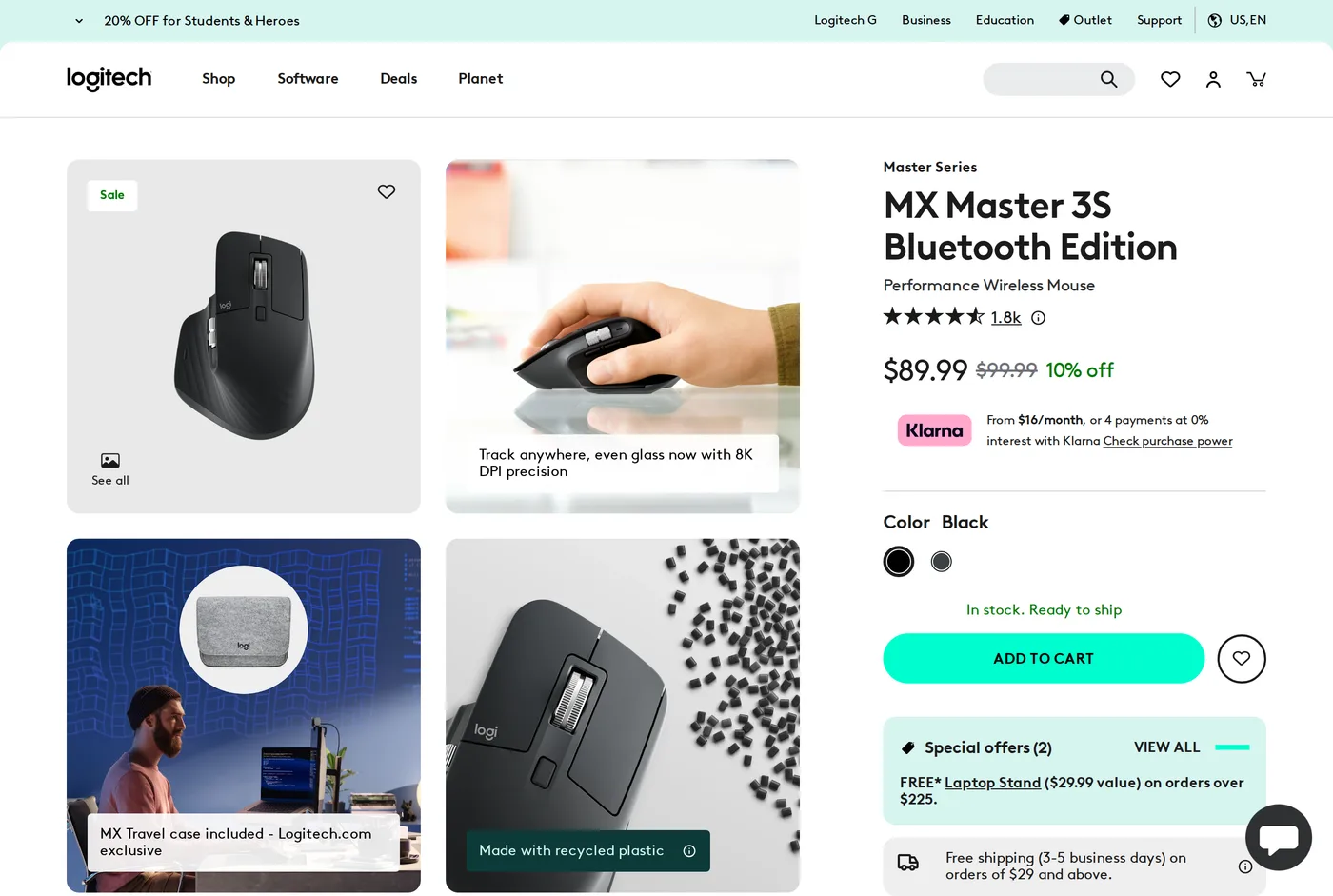
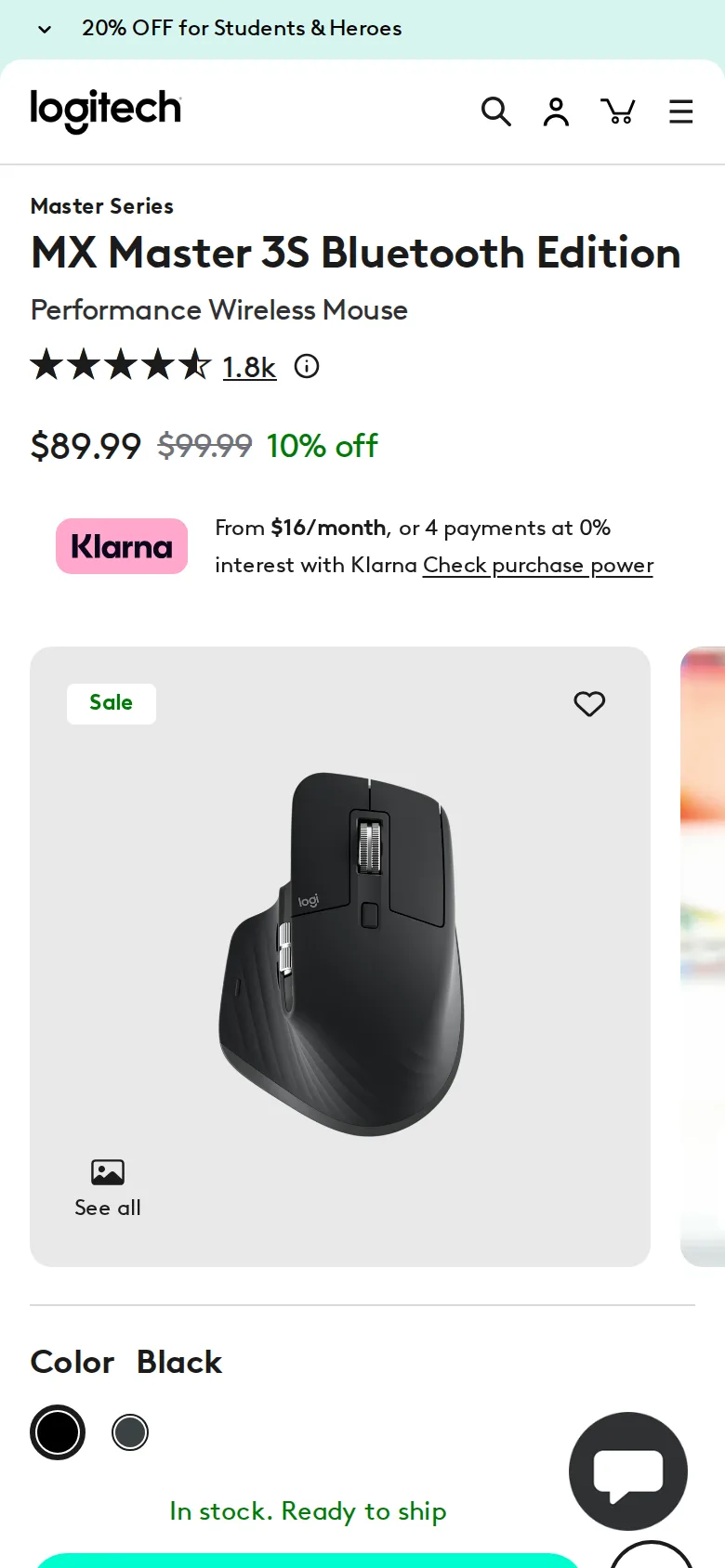
Most mice have a scroll wheel that clicks. The MX Master 3S has an electromagnetic wheel that switches between clicking and free-spinning depending on how hard you flick it — a gentle turn ratchets, a hard flick releases and the wheel spins for several seconds under its own momentum, carrying you down a thousand-line file.
This sounds like a gimmick until you use it for a week. Then it becomes the reason you will not go back. Reading a long document, scanning a codebase, moving through a spreadsheet — the wheel changes how those feel, and every other mouse afterwards feels like it is rationing scrolling.
Quiet clicks
The 3S replaced the previous model's mechanical click with a quieter switch that keeps a similar tactile response. Logitech quote around 90% less noise; what matters is that it is now a mouse you can use in a shared room without irritating anyone.
The tactility survived the change. This is unusual — most quiet mice feel mushy — and it is the single best reason to choose the 3S over a second-hand Master 3.
The ergonomic caveat
Here is where an ergonomics site has to be more careful than a general tech site.
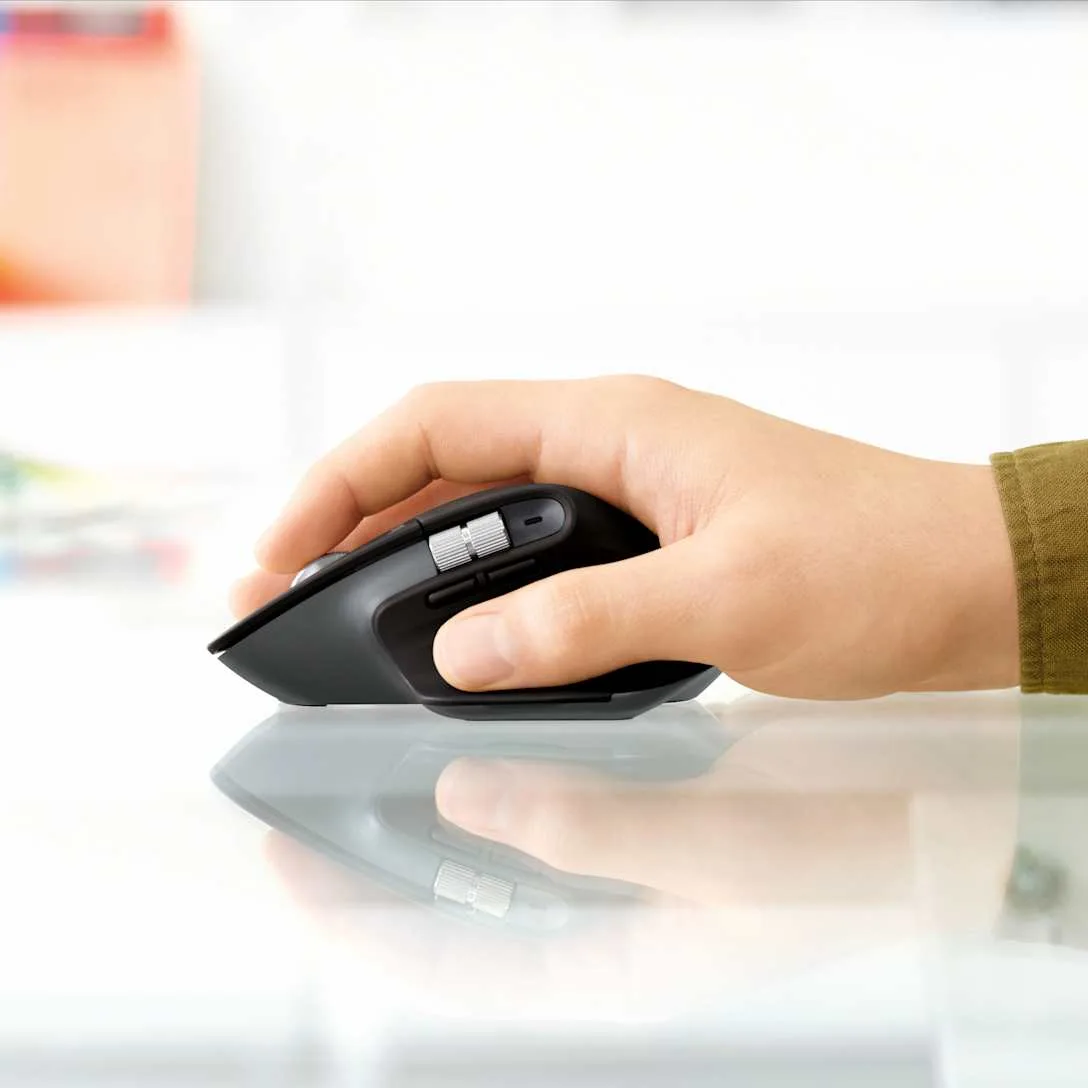
The MX Master 3S is a very comfortable conventional mouse. It is not an ergonomic mouse. Your palm rests on a sculpted shell, your thumb sits in a channel, and your forearm remains fully pronated — rotated so the palm faces down — which is the posture associated with most mouse-related forearm complaints.
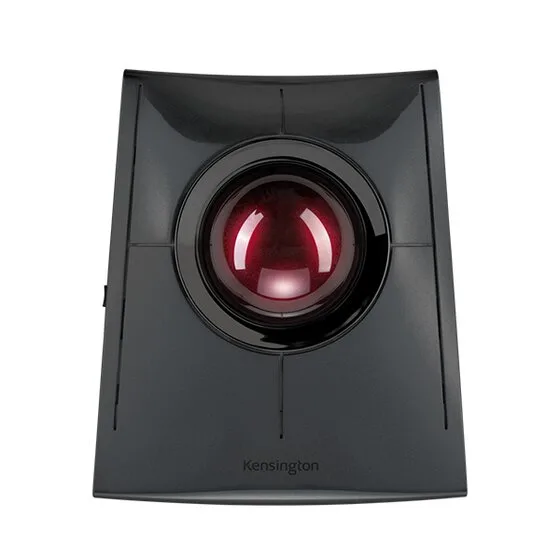
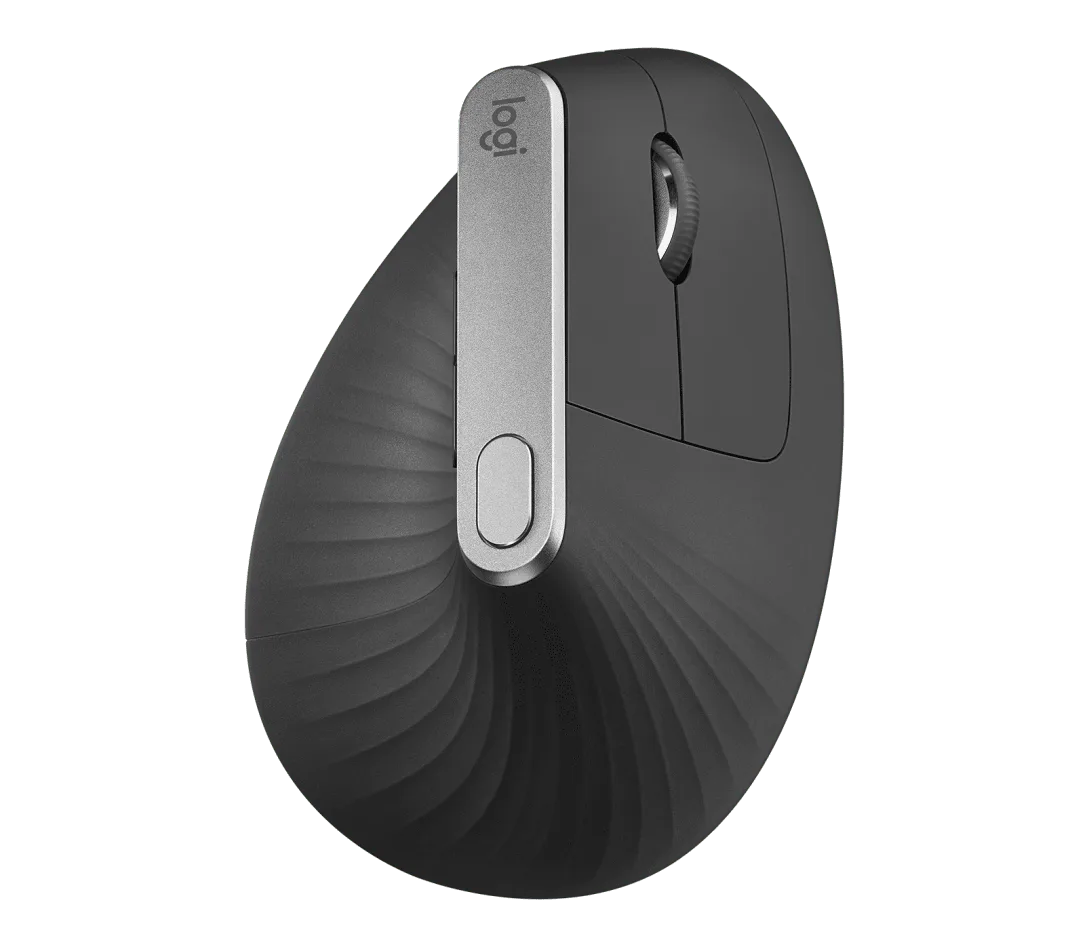
If your hand is tired, this mouse will help. If your forearm aches, or you have been told you have a problem in that area, a vertical mouse or a trackball addresses the actual mechanics and this one does not. We review both elsewhere on the site.
Buying an MX Master to fix forearm pain is the most common mistake in this category, and the product page will not correct you.
Size
It is big and it is tall: a 100 mm hand will be stretched over it, and the thumb controls will be a reach. Logitech publish the dimensions and they are worth measuring against your own hand before ordering. A smaller MX Anywhere suits many people better and nobody ever recommends it because it is less exciting.
Weight is around 140 g, which is heavy by gaming standards and appropriate here — this is a mouse for precision on a desk, not for flicking.
Features that need software
The horizontal thumb wheel, the gesture button and per-application button mapping all live in Logi Options+. Flow — moving the cursor off the edge of one screen and onto another computer, carrying the clipboard with it — also needs it, and Flow is genuinely excellent if you run two machines.
So the software calculus is different here than on the MX Keys S. The keyboard is fine with nothing installed. The mouse loses real capability. Our view: install it if you use two computers, skip it otherwise.
At first, the thumb controls get triggered by accident. That stops after about a week.
Sensor and surface
Logitech make a lot of the 8000 DPI sensor and its ability to track on glass. Both are true and neither is the reason to buy the mouse.
What tracking on glass actually buys you is freedom from a mousemat. On a glossy laminate desk, a glass-topped desk or a steel Magnus Pro, most mice skip or stutter; this one does not. If your desk surface has been the problem, that is a real fix.
The DPI figure matters much less. Very few people run anywhere near 8000, and the useful range for desk work on a 4K display is more like 1600 to 2400. Turning it up does not make you more precise; it makes small hand tremors into cursor movement.
Set it where a comfortable forearm movement crosses the screen once, and forget the number.
Battery and charging
Quoted at around seventy days per charge and, in our use, in that region. USB-C, and a one-minute charge gets you through a day. There is no scenario in which this mouse leaves you stranded.
Verdict
8.7. The best mouse most people can buy, provided you are buying it for capability rather than as a treatment.
What holds up
- The MagSpeed wheel switches between ratcheted and free-spinning automatically and it is genuinely useful
- Quiet clicks — a fraction of the noise of the old Master 3, with the same feel
- 8000 DPI sensor tracks on glass, which matters more on a glossy desk than it sounds
- Flow moves the cursor between two computers, and it works
What wears thin
- Large and tall: small hands will be stretching, not resting
- It is a shaped conventional mouse, not an ergonomic one — the forearm still pronates
- Logi Options+ again, for the features that distinguish it
- The thumb wheel and gesture button are easy to trigger by accident at first